The alignment viewer
The viewer is a virtualised canvas — it only draws the cells currently on screen, so it stays responsive on large alignments.
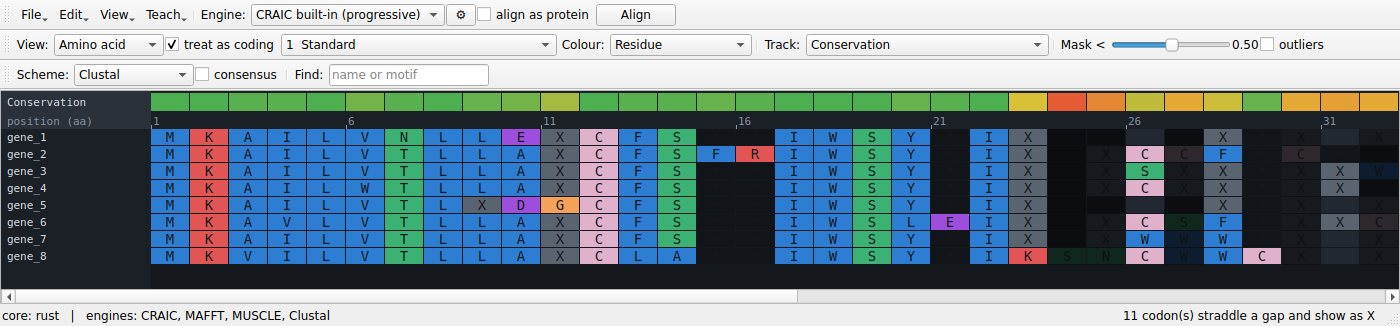
Levels: nucleotide / codon / amino acid
CRAIC stores one canonical representation and projects it. Use the View dropdown to switch between:
- Nucleotide — the aligned bases.
- Codon — bases grouped into triplets (requires a reading frame; tick treat as coding for a plain nucleotide alignment).
- Amino acid — each codon translated, with
---shown as a gap and partial-gap codons flagged asX.
For protein-coding data, align with align as protein turned on: CRAIC translates, aligns the amino acids, and back-translates, so the frame is never broken and all three levels stay valid.
Colouring
The Colour dropdown switches between:
- Residue — colours follow the level you're viewing: nucleotides by base, codons by the amino acid they encode (so synonymous codons share a colour), and amino acids by residue.
- Confidence — each residue shaded by its reliability (green = confident, red = uncertain), so ambiguity shows up in place. Runs the reliability analysis automatically if needed.
Amino-acid colours use the Scheme dropdown — Clustal, Zappo, Taylor, or Hydrophobicity. Toggle consensus for a consensus row beneath the alignment, Sort by similarity to group similar sequences, Remove gap columns to drop all-gap columns, and Find to jump to a sequence name or a motif.
Navigation and selection
- Scroll to pan; Ctrl/⌘ + scroll to zoom the cell size.
- Click-drag a column range — this is the selection that drives the realignment sandbox and the posterior explorer.
- Single-click a residue to probe it (see Ambiguity tools).
Tracks and masking
The band above the alignment is the track. Choose what it shows with the Track dropdown (reliability, consistency, perturbation, aligner agreement, or conservation). The Mask slider previews — live — which columns would be dropped at a given confidence threshold; Export masked… writes the trimmed alignment to FASTA.
Saving and exporting
Save… writes the alignment as FASTA, Clustal, PHYLIP, Stockholm, NEXUS, or MEGA. Copy (Ctrl/⌘+C) puts the selection on the clipboard as FASTA; Export image… saves the current view as a PNG.